# Vehicles
# Overview/New vehicle
#### Overview
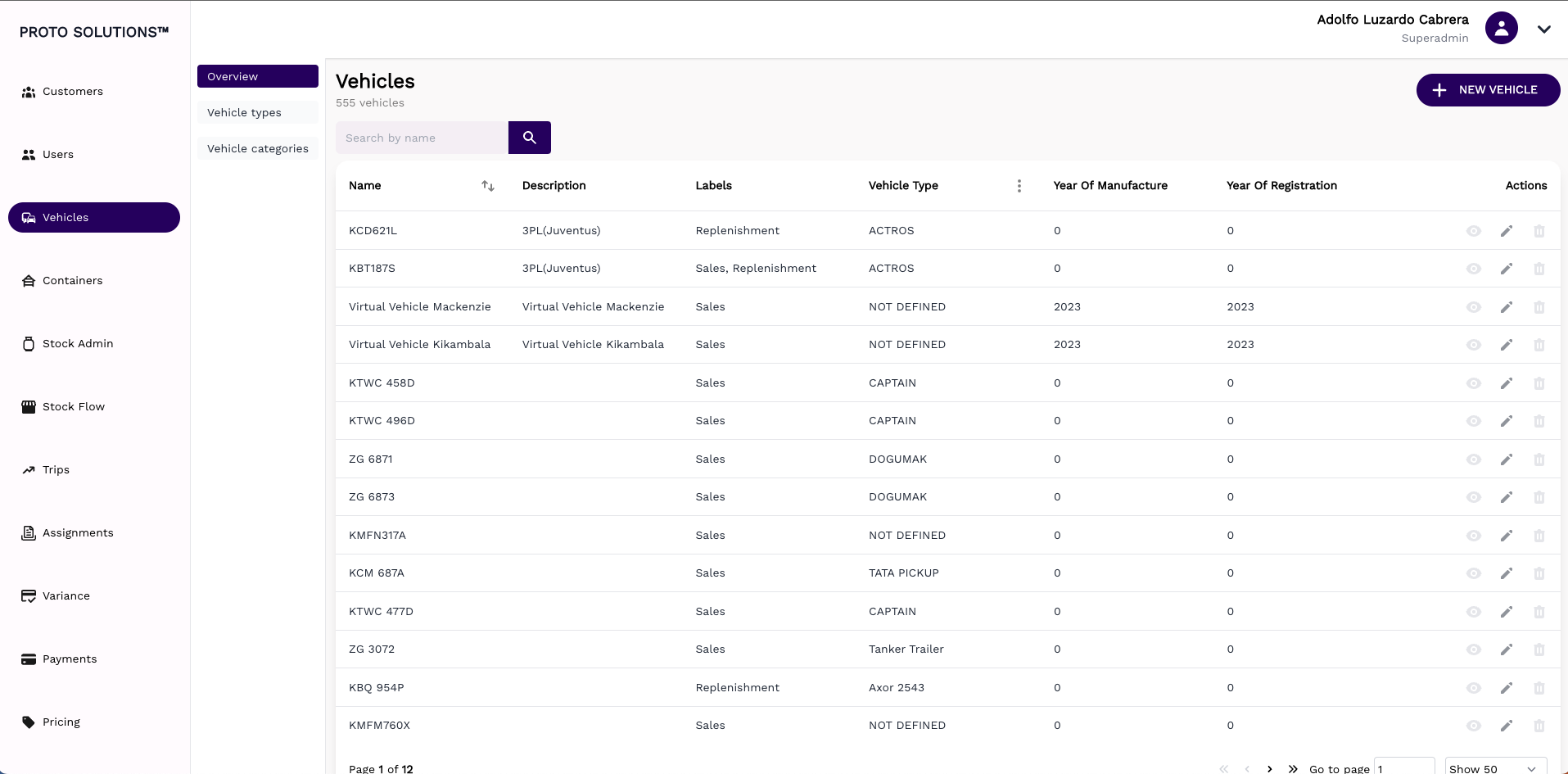
In order to see all vehicles registered in the system or create a new vehicle click on the **Overview** tab.
All customers have the Name, Description, Labels, Vehicle type, Year of manufacture, and Year of registration information displayed.
[](https://wiki.circl.services/uploads/images/gallery/2023-05/screenshot-2023-05-05-at-10-23-31.png)
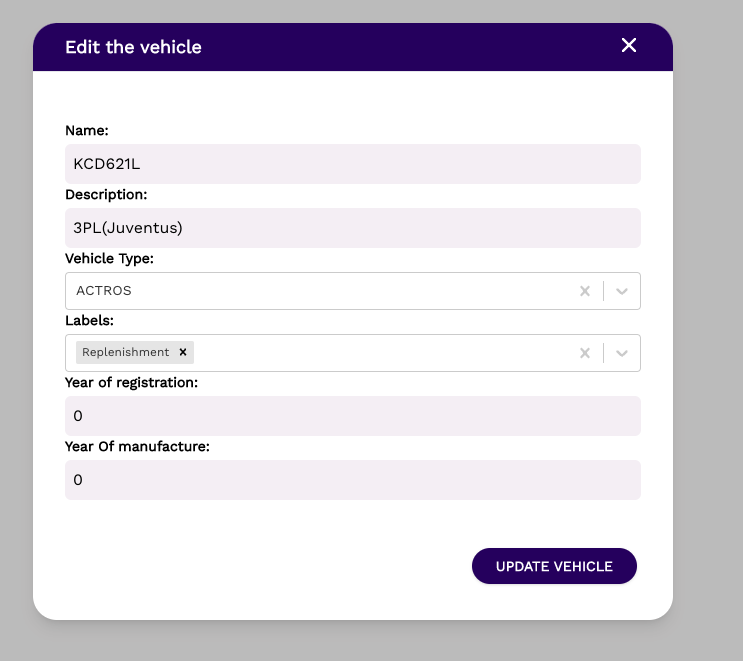
##### Update
[](https://wiki.circl.services/uploads/images/gallery/2023-05/screenshot-2023-05-05-at-10-24-30.png)
---
####
#### New vehicle
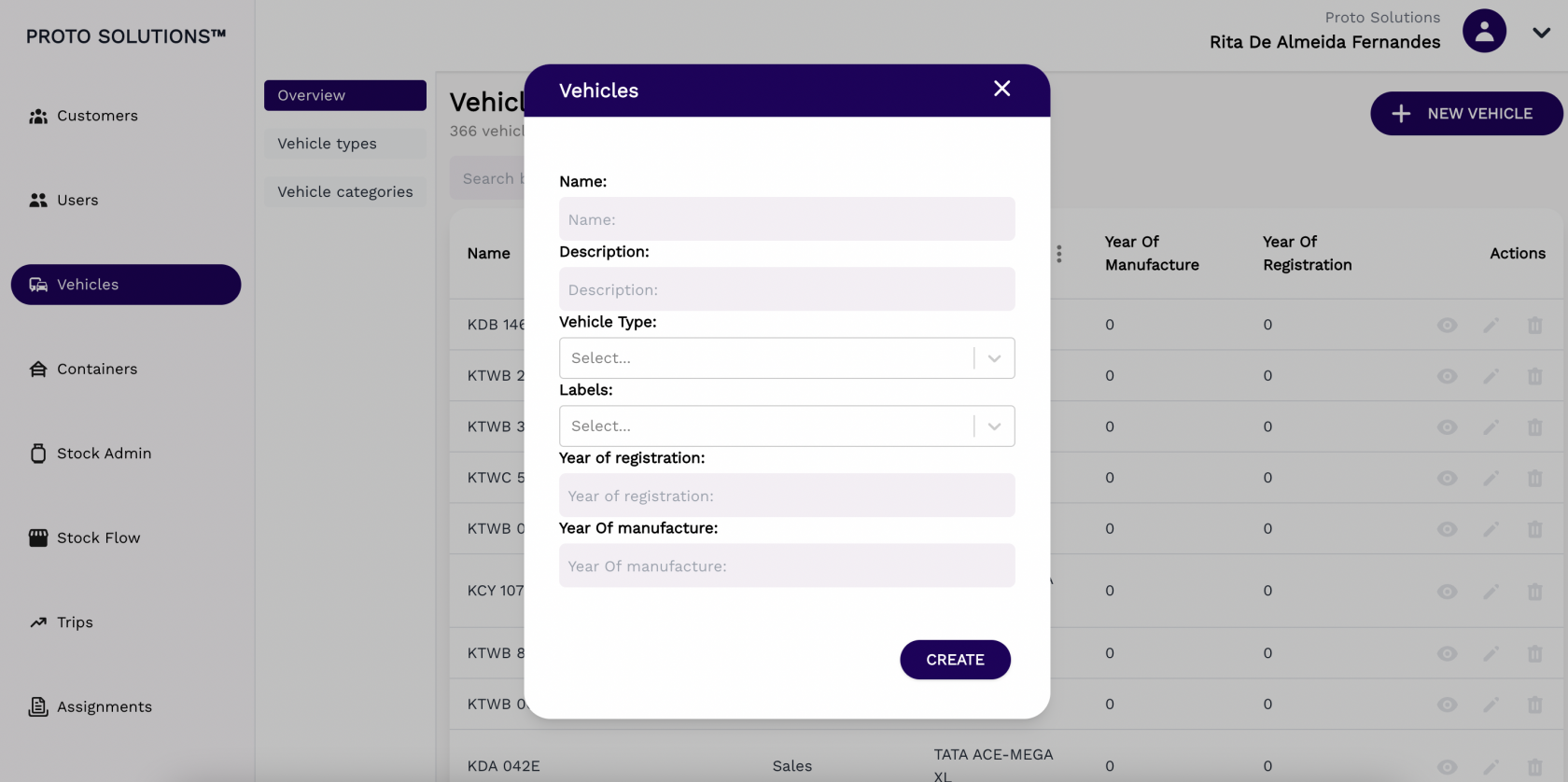
To create and register a new vehicle in the system you can click on the **New Vehicle** button. A new page will open with the vehicle required information in order to complete a successful registration. The mandatory fields for vehicle creation are the Name, Description, Labels, and Vehicle type. Other fields like Year of manufacture and Year of registration are additional and optional fields.
After filling out all the mandatory fields you can click on the button **Submit** in order to finish the vehicle creation.
[](https://wiki.circl.services/uploads/images/gallery/2022-09/NC4image.png)
# Vehicle Types/New Vehicle Type
#### Vehicle Types
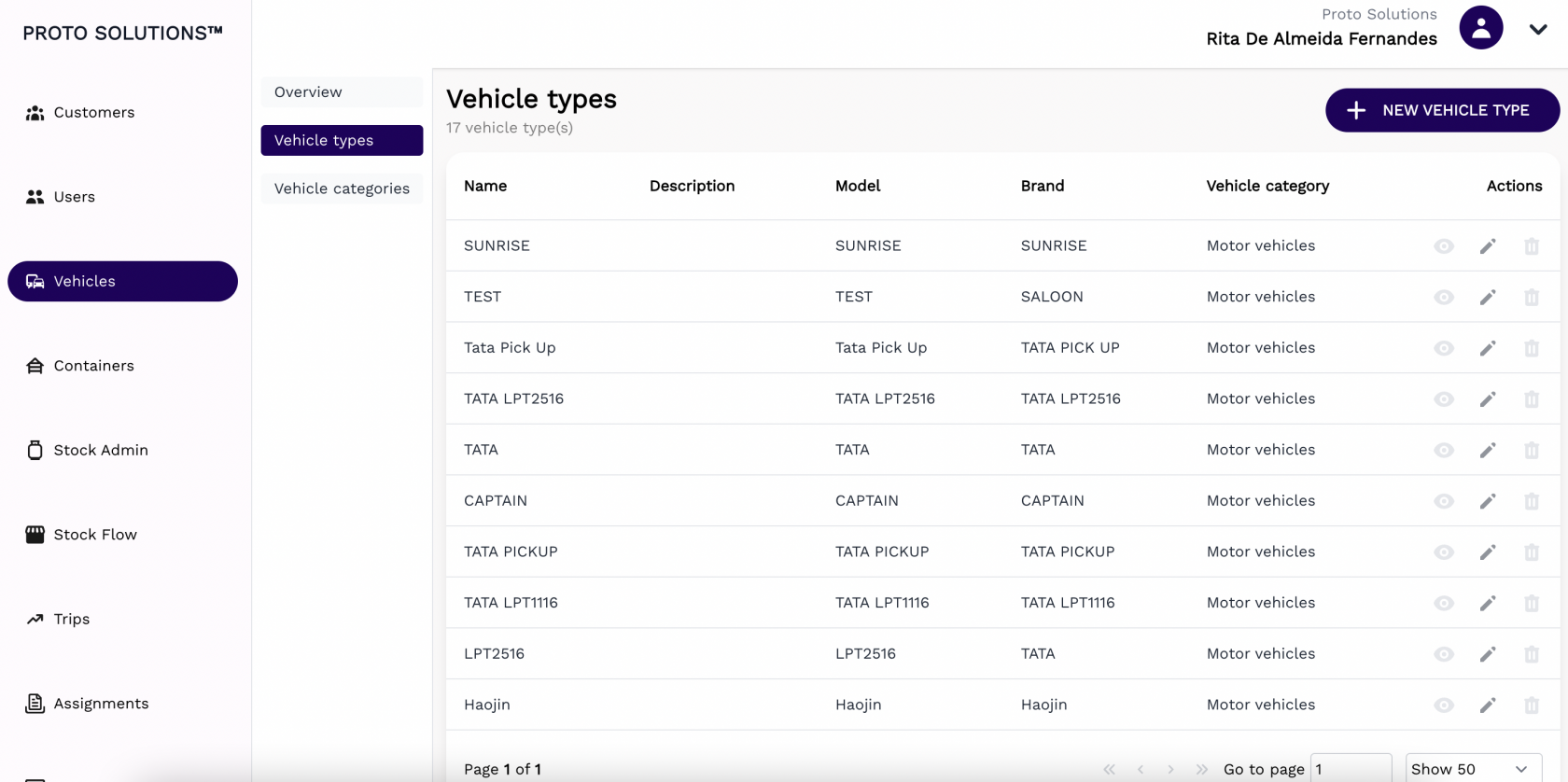
In order to see all vehicle types available in the system, you can click on the **Vehicle types** tab.
[](https://wiki.circl.services/uploads/images/gallery/2022-09/YKRimage.png)
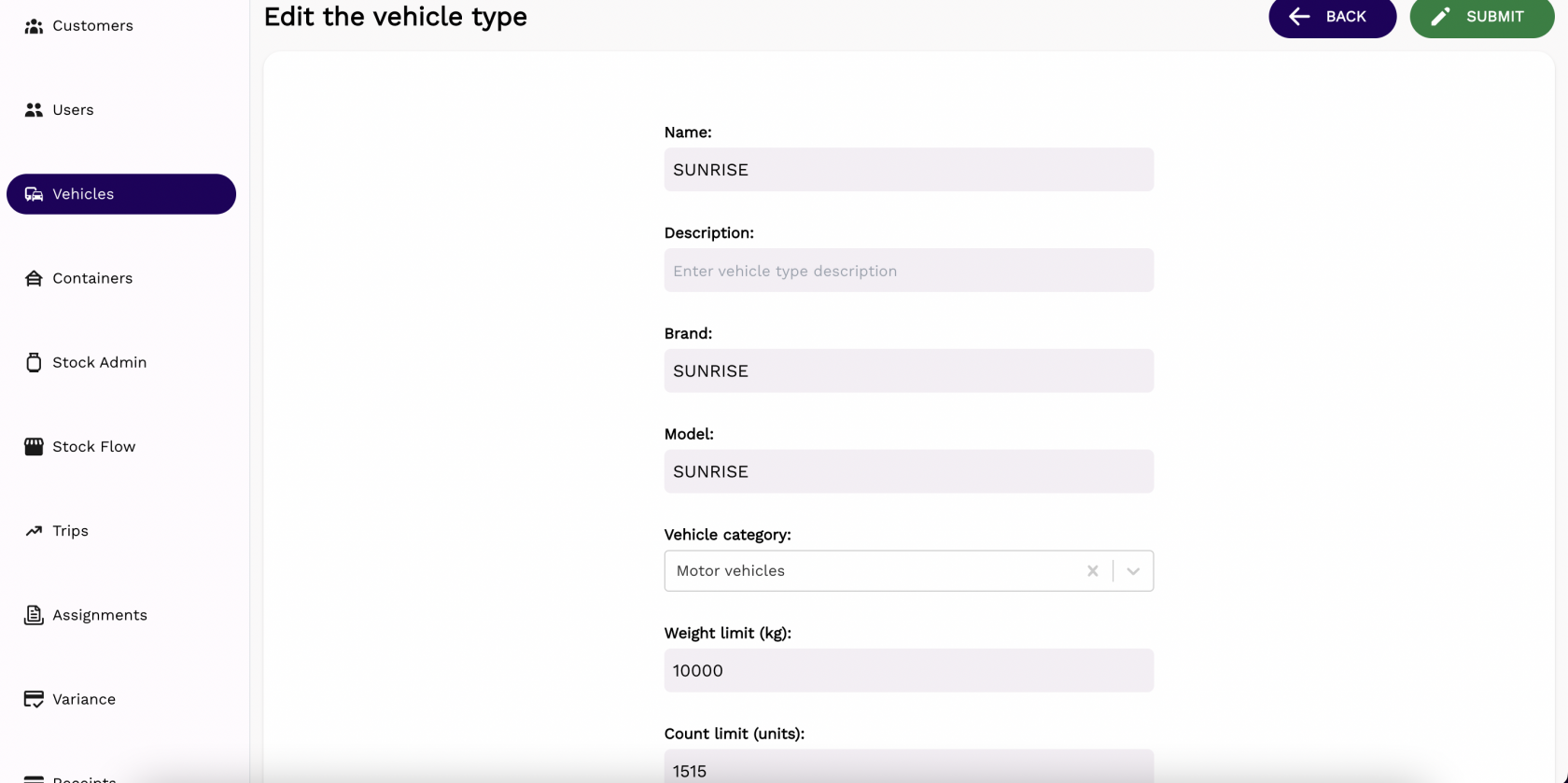
You can click on the **Actions** buttons to update a vehicle type. All vehicle types have a Name, Model, Brand, Vehicle category, Weight limit (kg), and Count limit (units).
#####
##### Update
[](https://wiki.circl.services/uploads/images/gallery/2022-09/3L5image.png)
---
####
#### New vehicle type
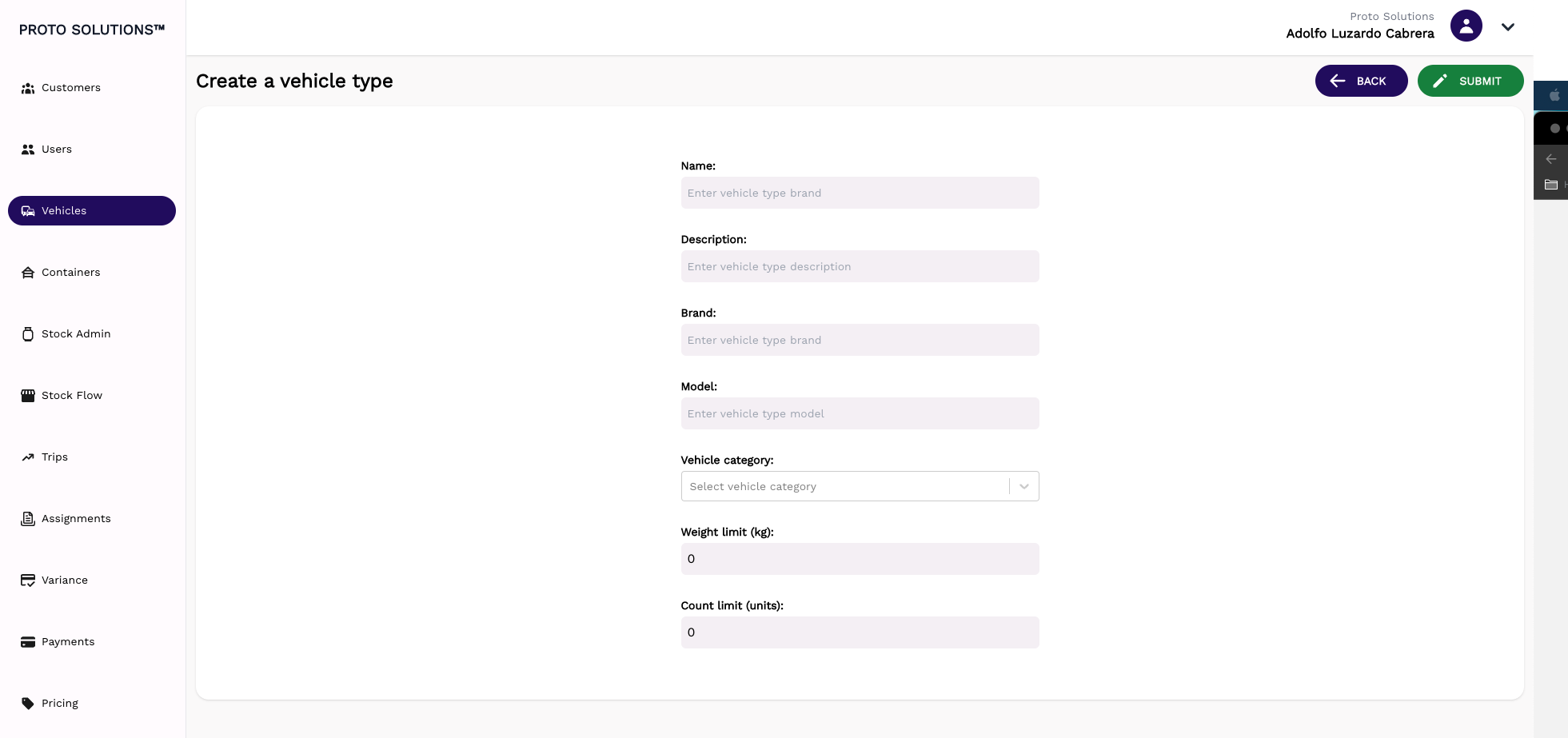
To create and register a new vehicle type in the system you can click on the **New Vehicle Type** button. A new page will open with the vehicle type required information in order to complete a successful registration. The mandatory fields for the vehicle type creation are the Name, Brand, Model, and Vehicle category.
After filling out all the mandatory fields you can click on the button **Submit** in order to finish the vehicle type creation.
[](https://wiki.circl.services/uploads/images/gallery/2022-12/screenshot-2022-12-29-at-13-38-10.png)
# Vehicle Categories
#### Vehicle Categories
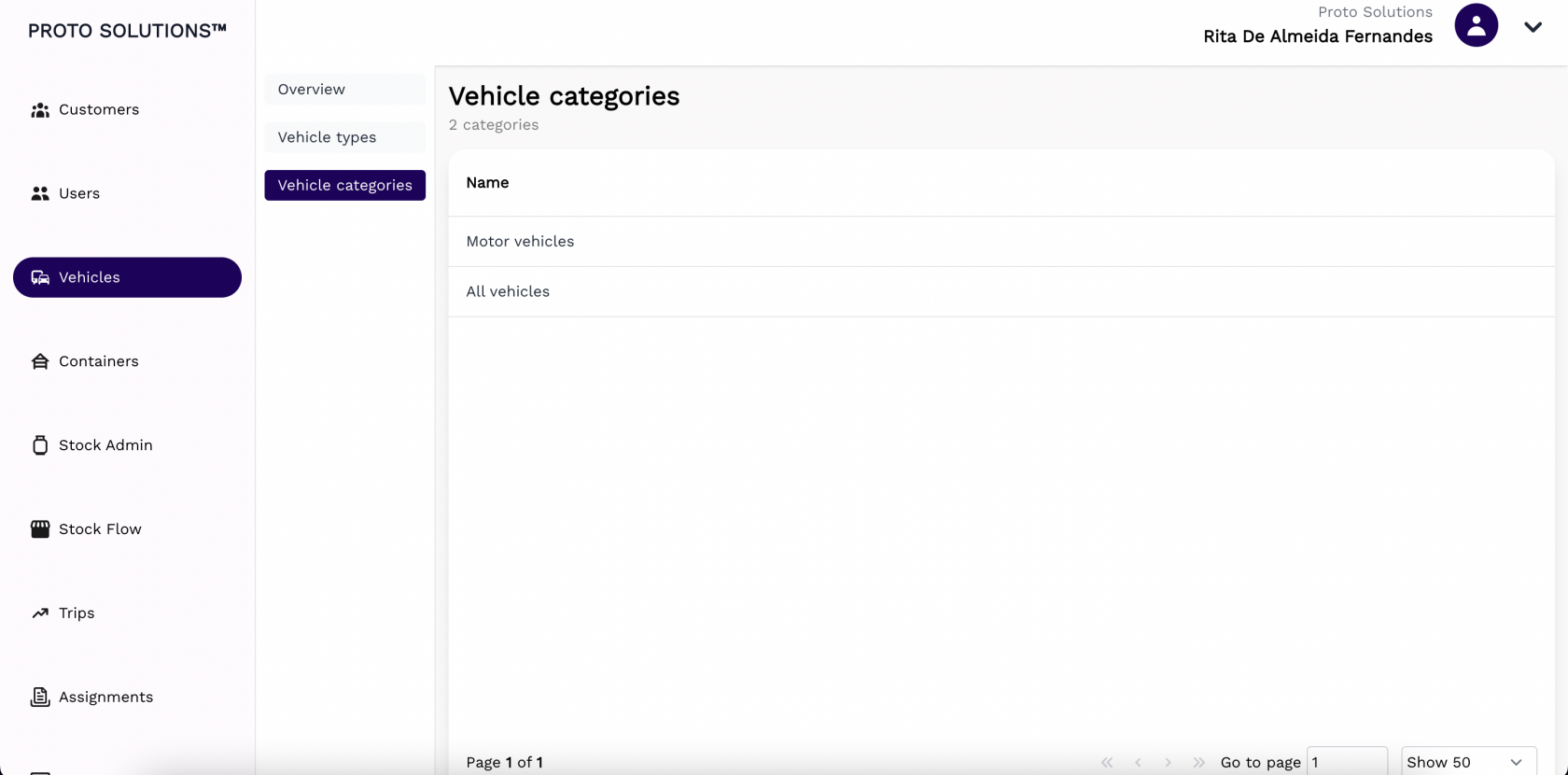
In order to see all vehicle categories available in the system, you can click on the **Vehicle categories** tab.
[](https://wiki.circl.services/uploads/images/gallery/2022-09/P7bimage.png)