# 3. How to Start Trips

#### Start a trip

Every driver can perform one trip at a time. To see your scheduled trips, access the **Trips** tab and check the **Upcoming** trips.

[![Trips — canister + accessory.png](https://wiki.circl.services/uploads/images/gallery/2023-03/scaled-1680-/trips-canister-accessory.png)](https://wiki.circl.services/uploads/images/gallery/2023-03/trips-canister-accessory.png)
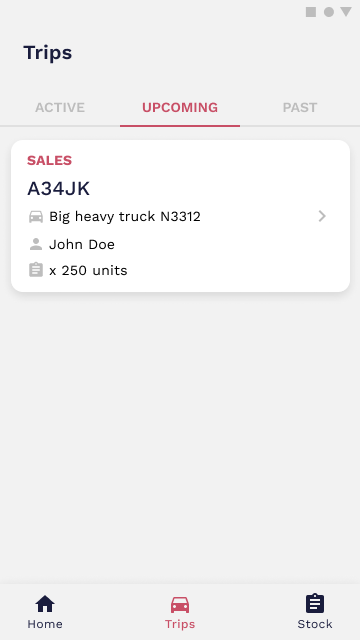
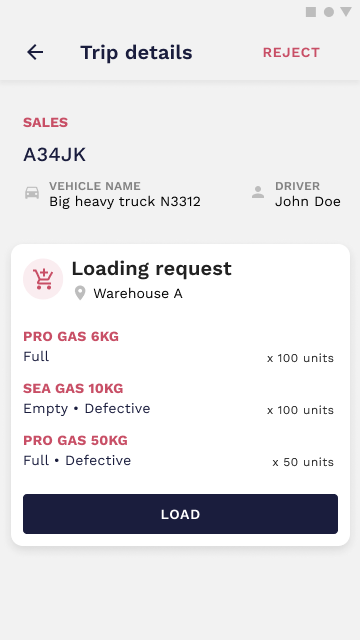
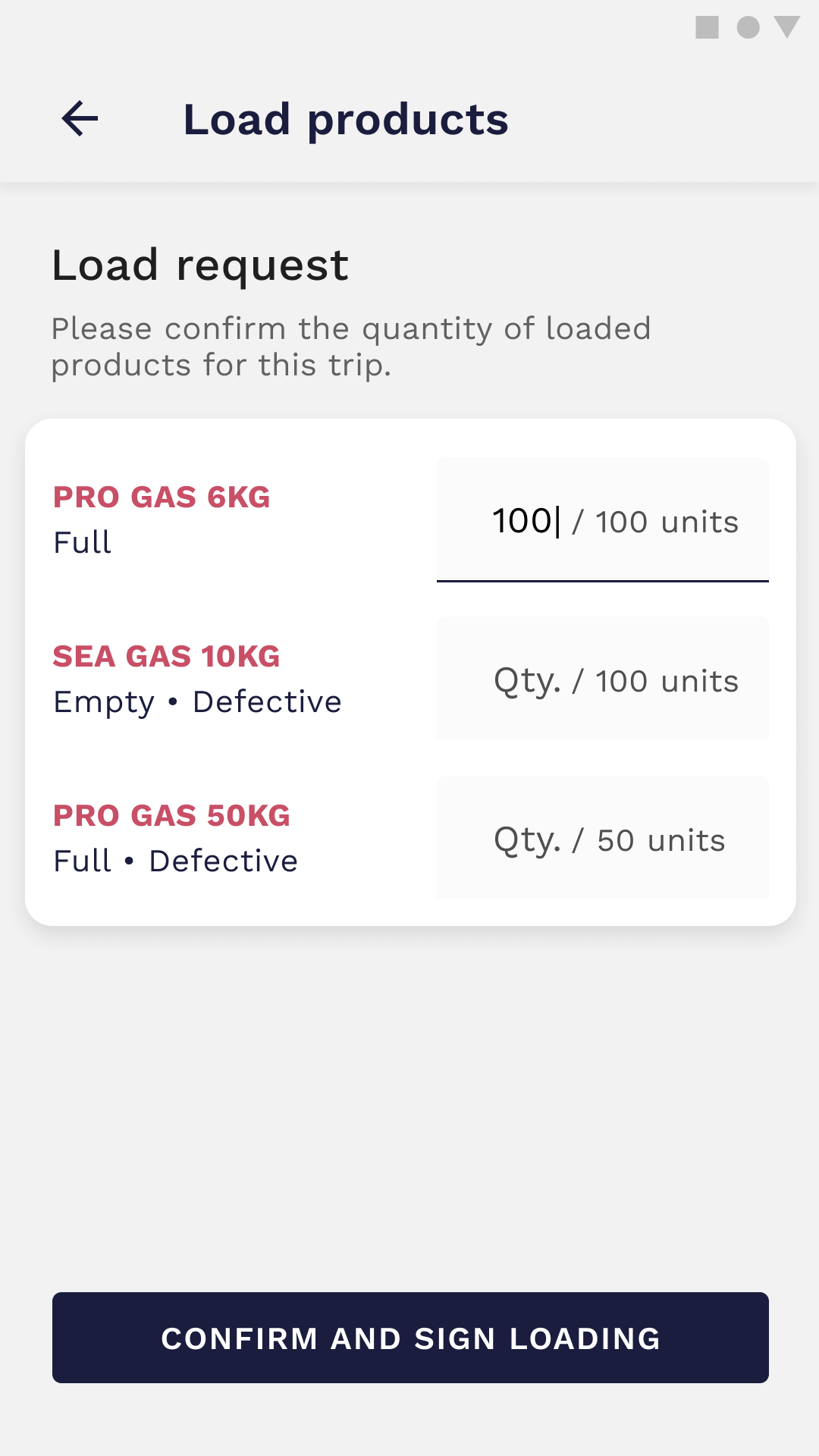
To start a trip all you need to do is select a trip card. It will show you the details page where you can load the products. Each card displays the trip type, ID, vehicle, your name, and the product quantity or warehouses.

[![Trip details — load.png](https://wiki.circl.services/uploads/images/gallery/2023-03/scaled-1680-/trip-details-load.png)](https://wiki.circl.services/uploads/images/gallery/2023-03/trip-details-load.png)
[![Trip details — load-1.png](https://wiki.circl.services/uploads/images/gallery/2023-03/scaled-1680-/Softrip-details-load-1.png)](https://wiki.circl.services/uploads/images/gallery/2023-03/Softrip-details-load-1.png)
[![Trip details — pending.png](https://wiki.circl.services/uploads/images/gallery/2023-03/scaled-1680-/trip-details-pending.png)](https://wiki.circl.services/uploads/images/gallery/2023-03/trip-details-pending.png)
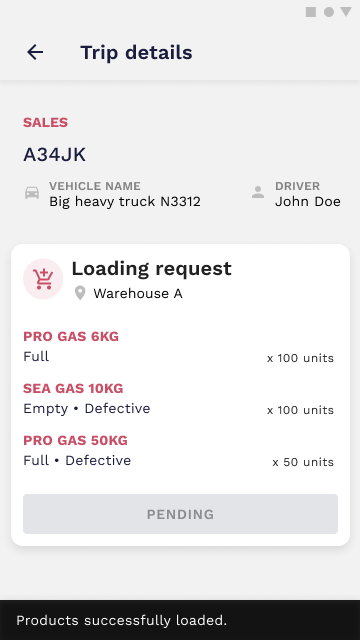
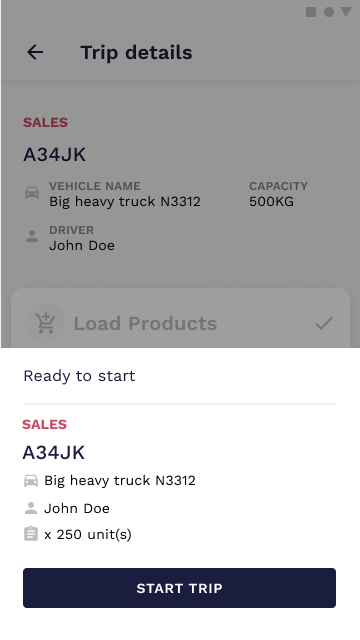
The **Load** state changes to **Pending** and the action is completed when both driver and container manager sign the action. You are able to start your trip when a pop-up notification shows up.

<span id="bkmrk--15">[![Trip details — load signed.png](https://wiki.circl.services/uploads/images/gallery/2022-09/scaled-1680-/trip-details-load-signed.png)](https://wiki.circl.services/uploads/images/gallery/2022-09/trip-details-load-signed.png)</span>

<span id="bkmrk--16">[![Trip details — load signed2.png](https://wiki.circl.services/uploads/images/gallery/2022-09/scaled-1680-/trip-details-load-signed2.png)](https://wiki.circl.services/uploads/images/gallery/2022-09/trip-details-load-signed2.png)</span>

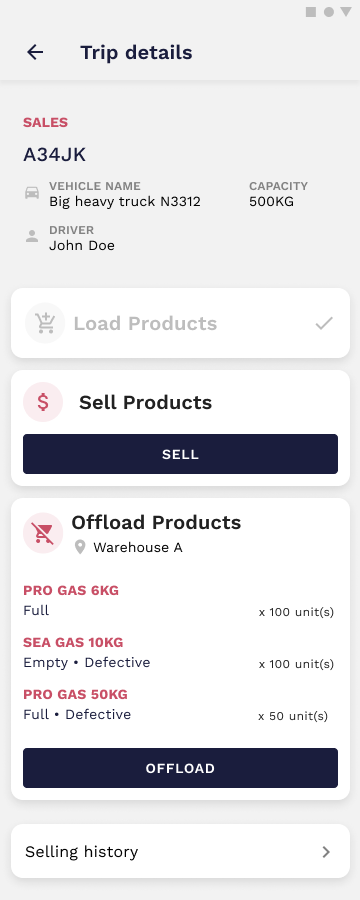
<div class="pointer-container" id="bkmrk-%C2%A0-1"><div class="pointer anim is-page-editable"><svg class="svg-icon" data-icon="link" role="presentation" viewbox="0 0 24 24" xmlns="http://www.w3.org/2000/svg"></svg><div class="input-group inline block"> <button class="button outline icon" data-clipboard-target="#pointer-url" title="Copy Link" type="button"><svg class="svg-icon" data-icon="copy" role="presentation" viewbox="0 0 24 24" xmlns="http://www.w3.org/2000/svg"></svg></button></div><svg class="svg-icon" data-icon="edit" role="presentation" viewbox="0 0 24 24" xmlns="http://www.w3.org/2000/svg"></svg></div></div>Click on **Start Trip** to initiate the trip and start to sell the products. The offload option is always available because it is not mandatory to sell every product from the stock in order to offload.

##### Video tutorial

<video controls="controls" height="404" style="width: 808px; height: 404px;" width="808"> <source src="https://wiki.circl.services/attachments/8"></source></video>

---