# Customers
# Overview/New customer
#### Overview
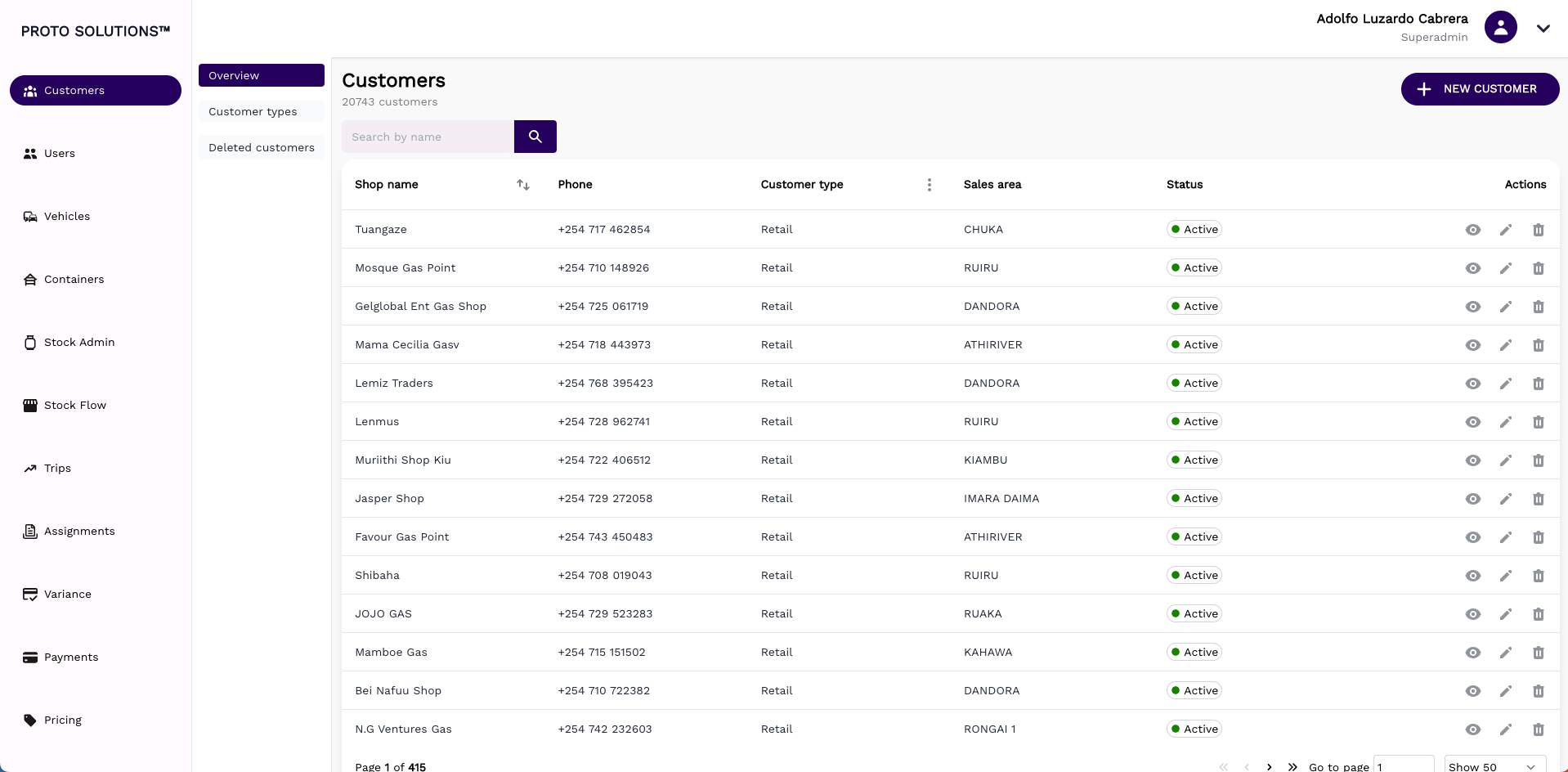
#### In order to see all customers registered in the system or create a new customer click on the **Overview** tab.
[](https://wiki.circl.services/uploads/images/gallery/2023-05/screenshot-2023-05-05-at-09-18-55.png)
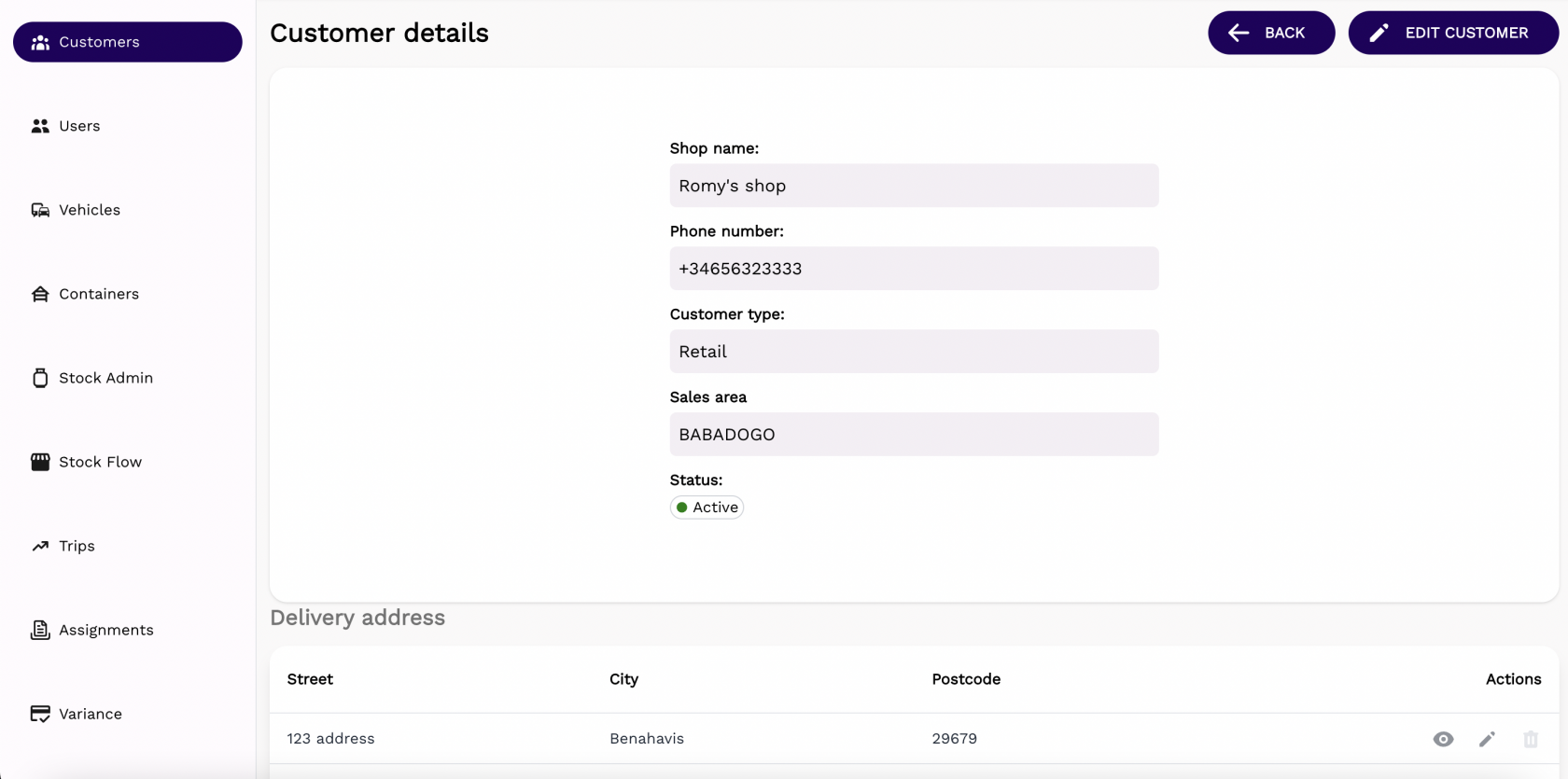
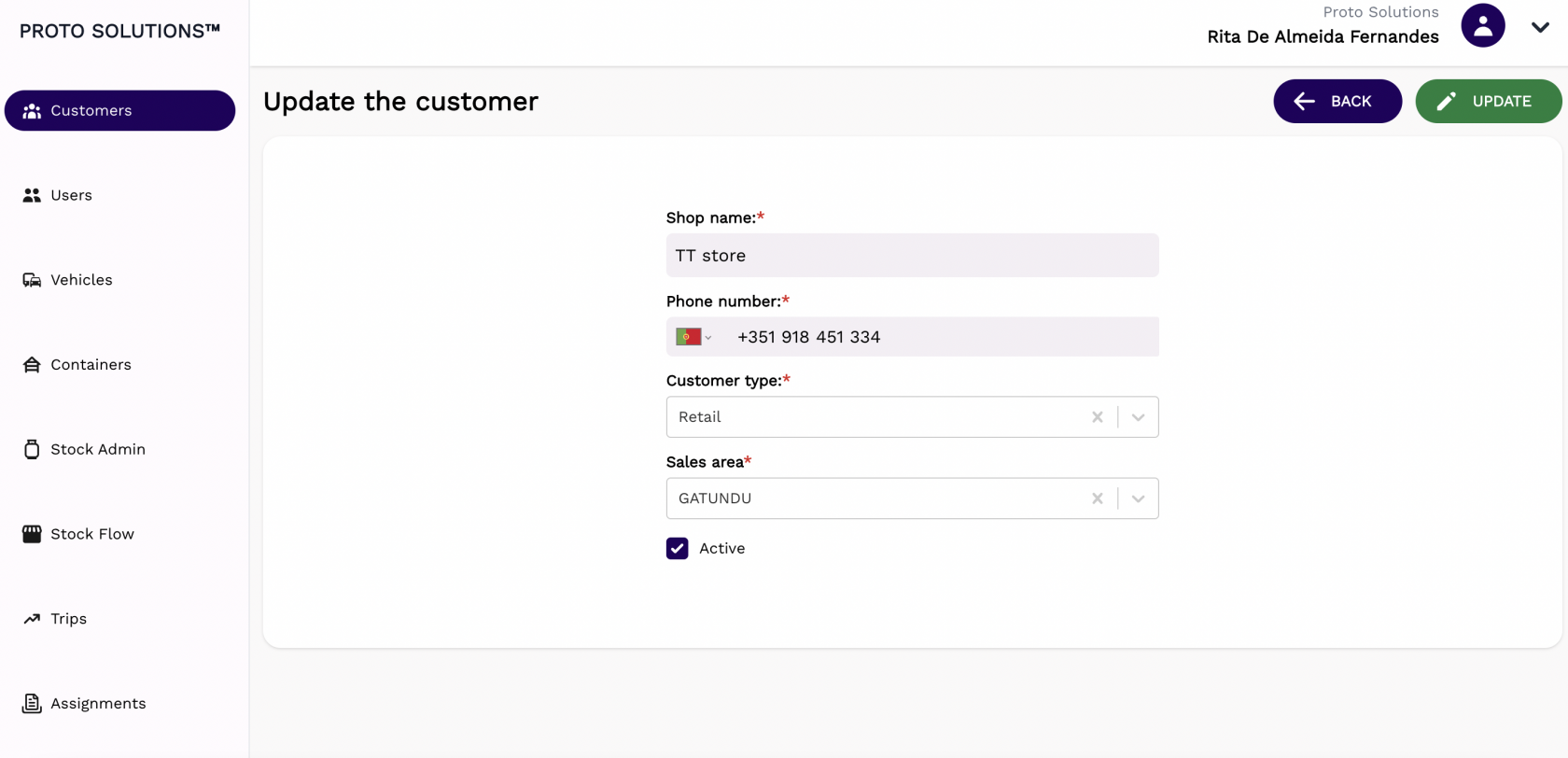
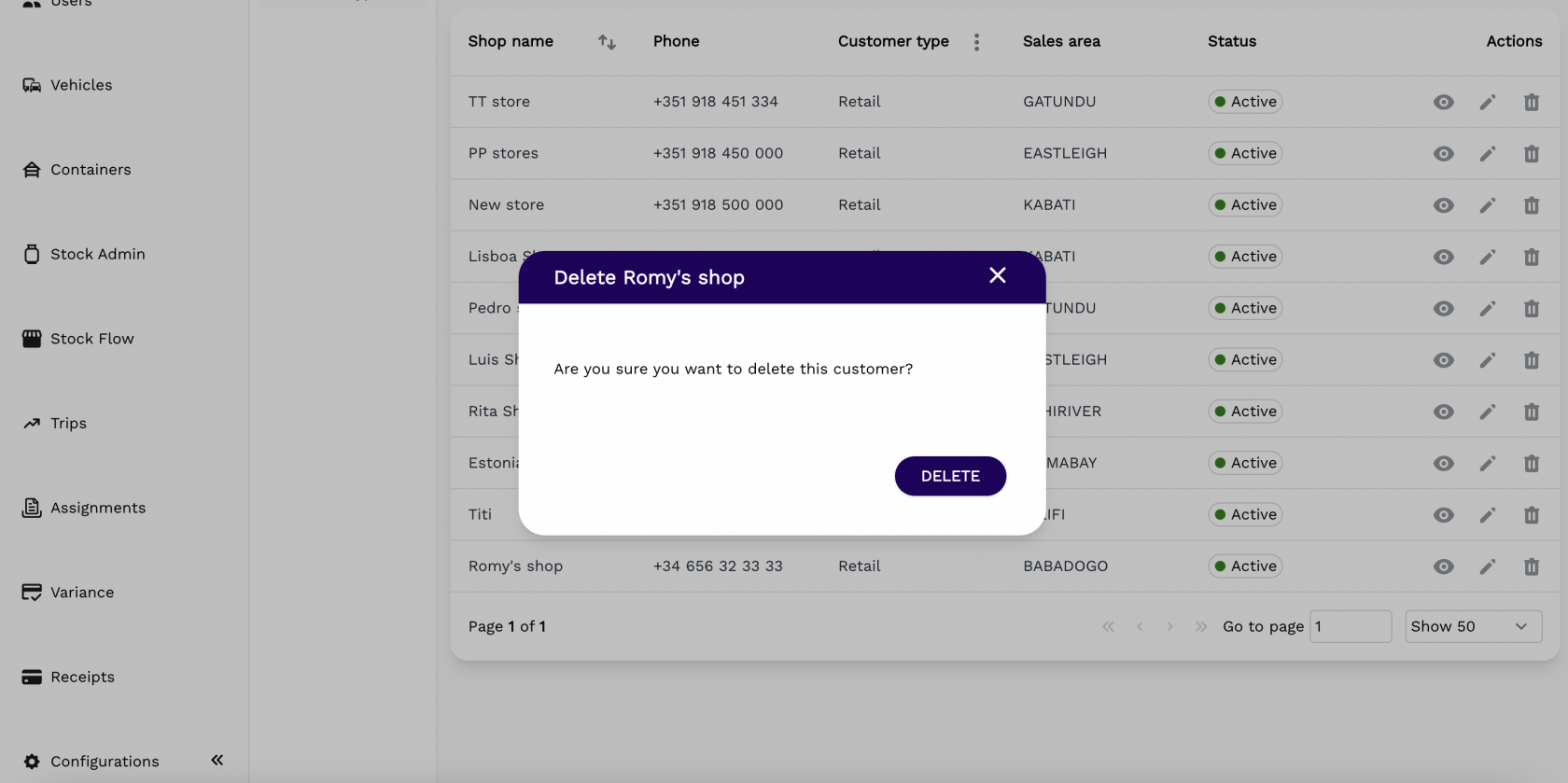
You can click on the **Actions** buttons to display, update and delete a registered customer. All customers have the Shop name, Phone, Customer Type, Sales Area, and Status information displayed.
#####
##### Display
[](https://wiki.circl.services/uploads/images/gallery/2022-09/JDFimage.png)
#####
##### Update
[](https://wiki.circl.services/uploads/images/gallery/2022-09/v1dimage.png)
#####
##### Delete
[](https://wiki.circl.services/uploads/images/gallery/2022-09/BLJimage.png)
---
####
#### New customer
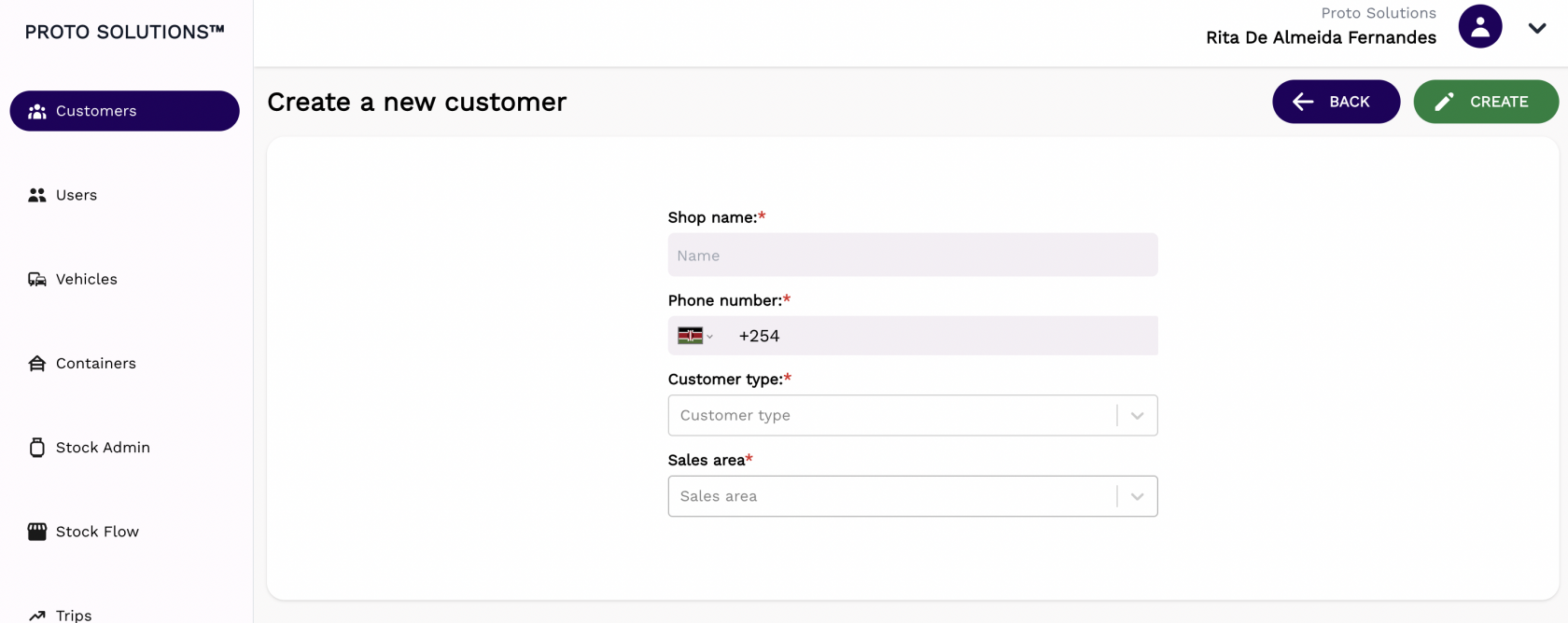
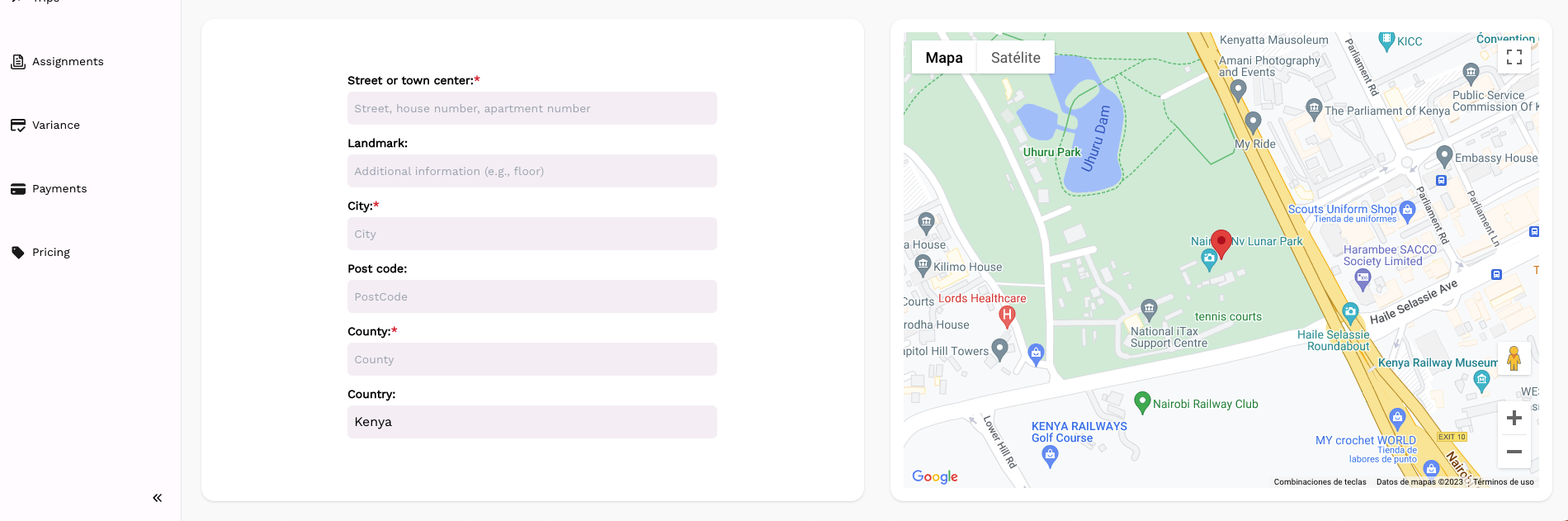
To create and register a new customer in the system you can click on the **New Customer** button. A new page will open with the customer required information in order to complete a successful registration. The mandatory fields for customer creation are the Shop name, Phone Number, Customer Type, Sales Area, Address, City, Postcode, State/Province, and Country. Other fields like Additional address info and Country are additional and optional fields.
After filling out all the mandatory fields you can click on the button **Create** in order to finish the customer creation.
[](https://wiki.circl.services/uploads/images/gallery/2022-09/OAYimage.png)
[](https://wiki.circl.services/uploads/images/gallery/2023-05/screenshot-2023-05-05-at-09-17-22.png)
# Customer Types/New Customer Type
#### Customer Types
In order to see all customer types available in the system, you can click on the **Customer types** tab.
[](https://wiki.circl.services/uploads/images/gallery/2023-03/customer-type.png)
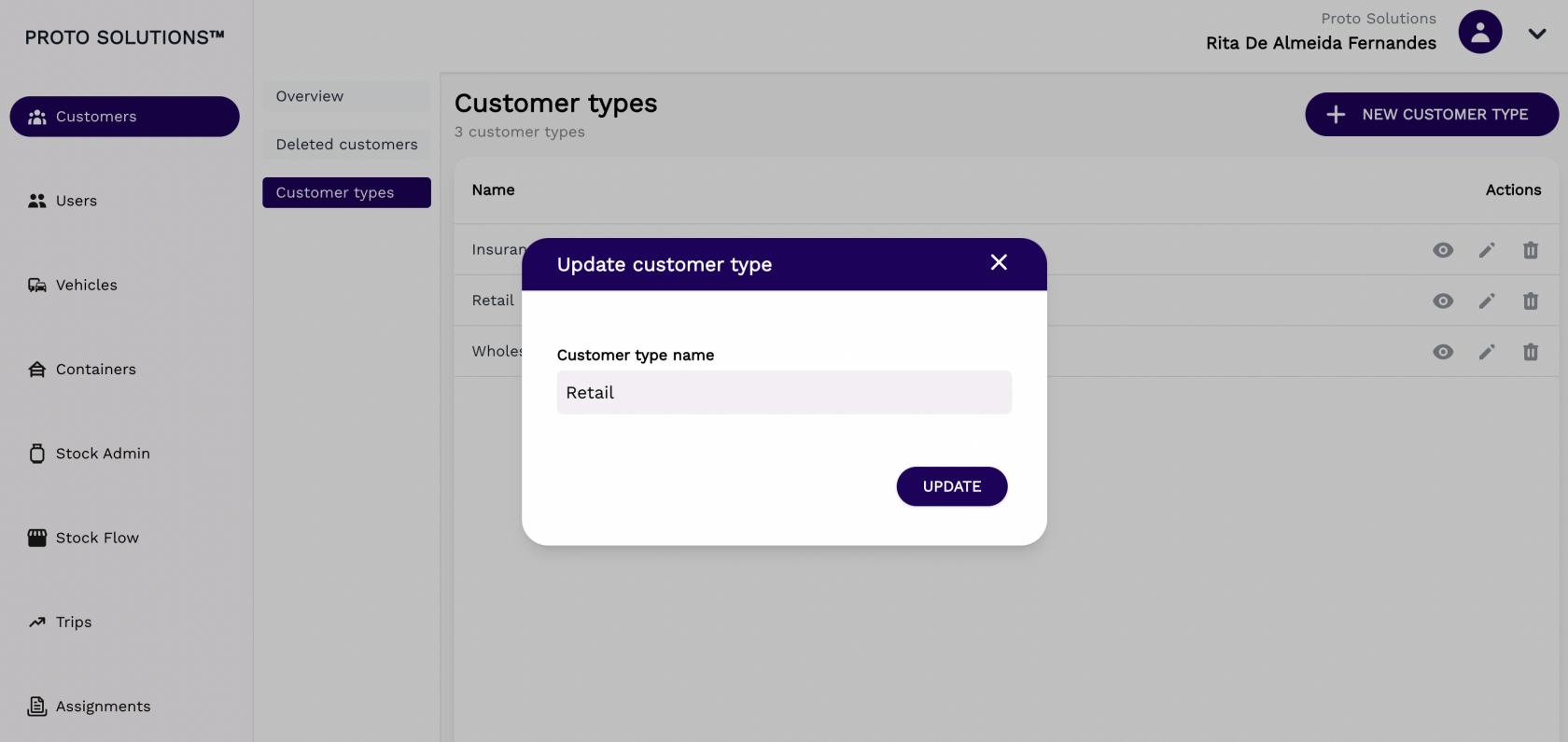
You can click on the **Actions** buttons to display, update and delete a customer type. All customers have a name.
#####
##### Display
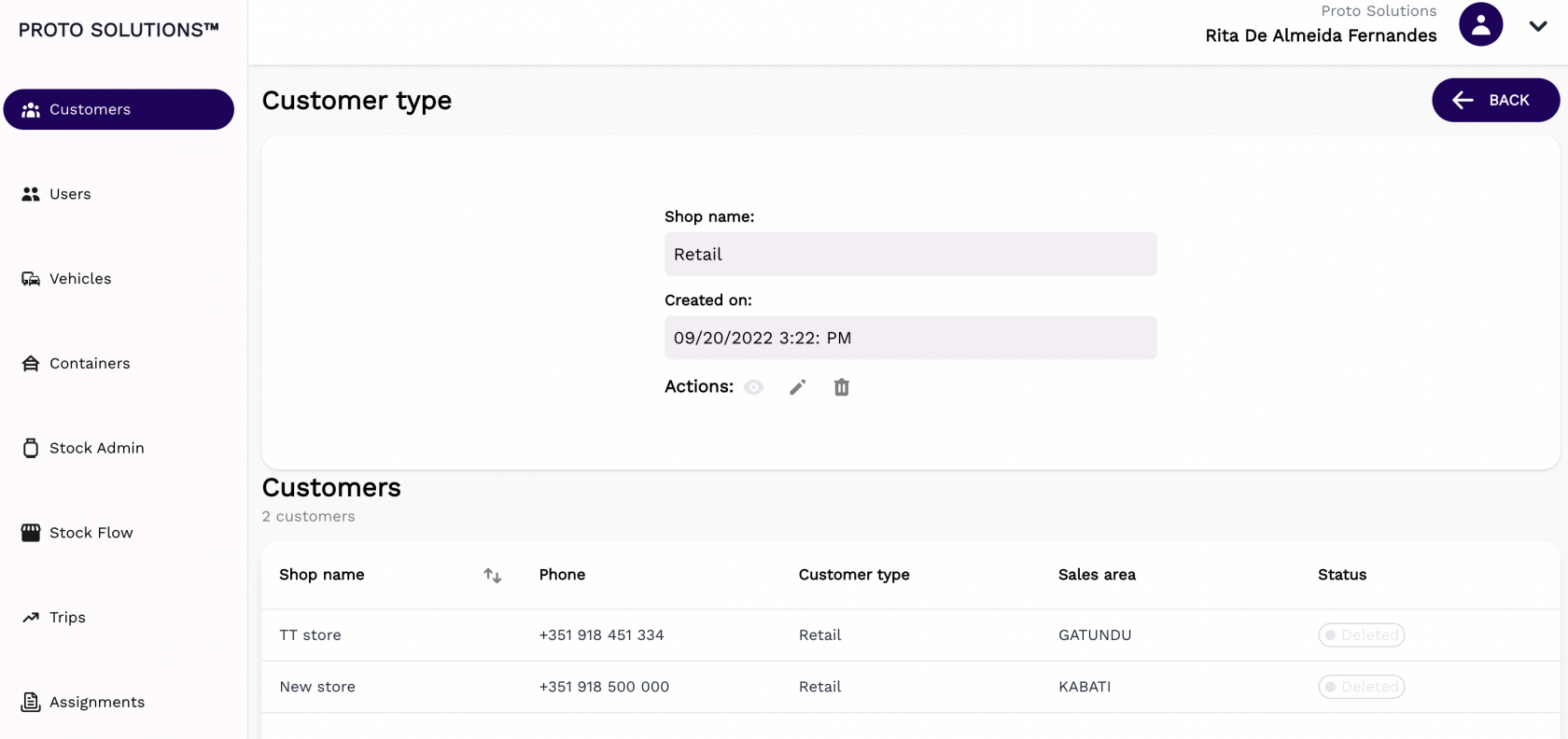
After clicking on the display action button you can see the information related to that customer type and also a list of existing customers from that type.
[](https://wiki.circl.services/uploads/images/gallery/2022-09/JUUimage.png)
#####
##### Update
[](https://wiki.circl.services/uploads/images/gallery/2022-09/zdYimage.png)
#####
##### Delete
[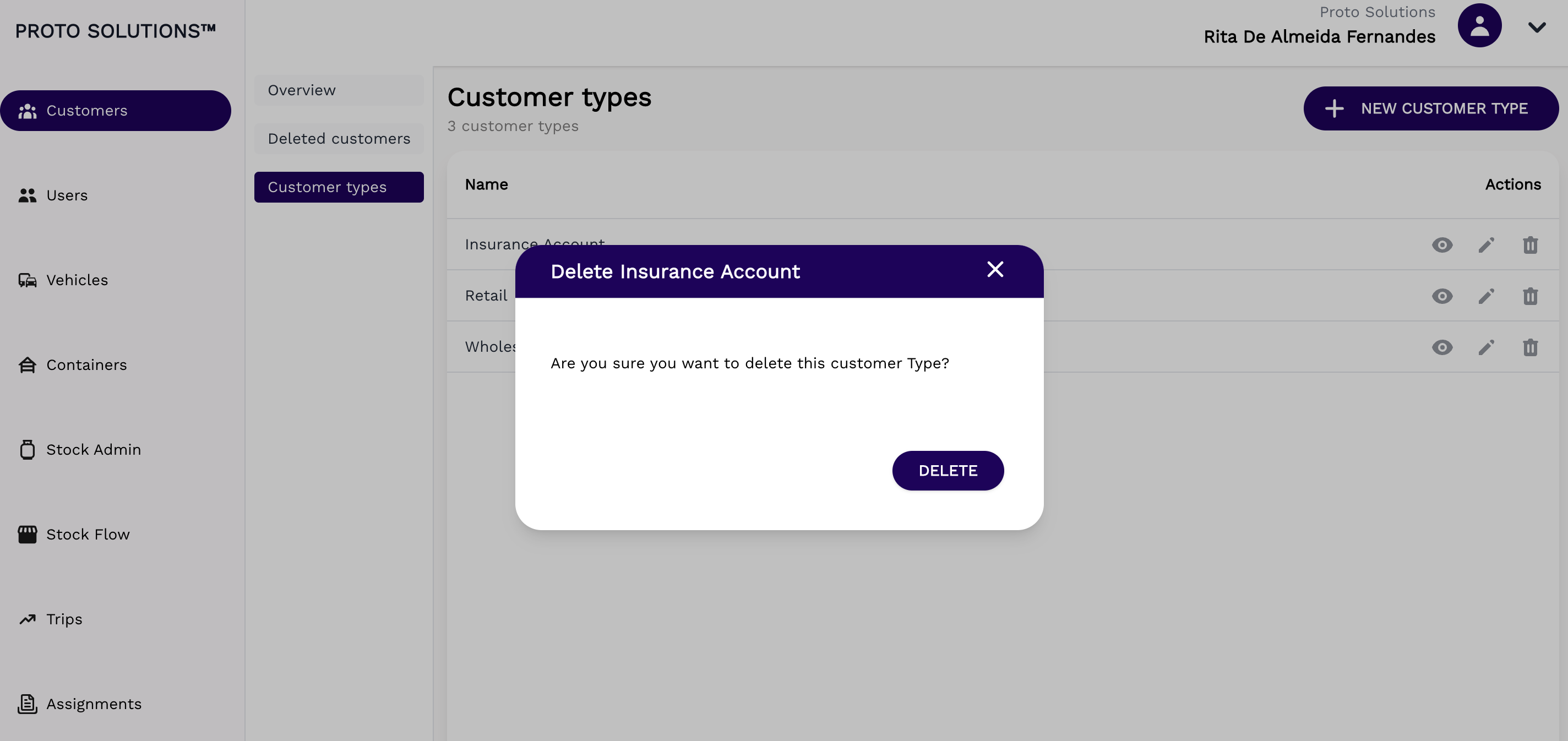](https://wiki.circl.services/uploads/images/gallery/2022-09/MrCimage.png)
---
####
#### New Customer type
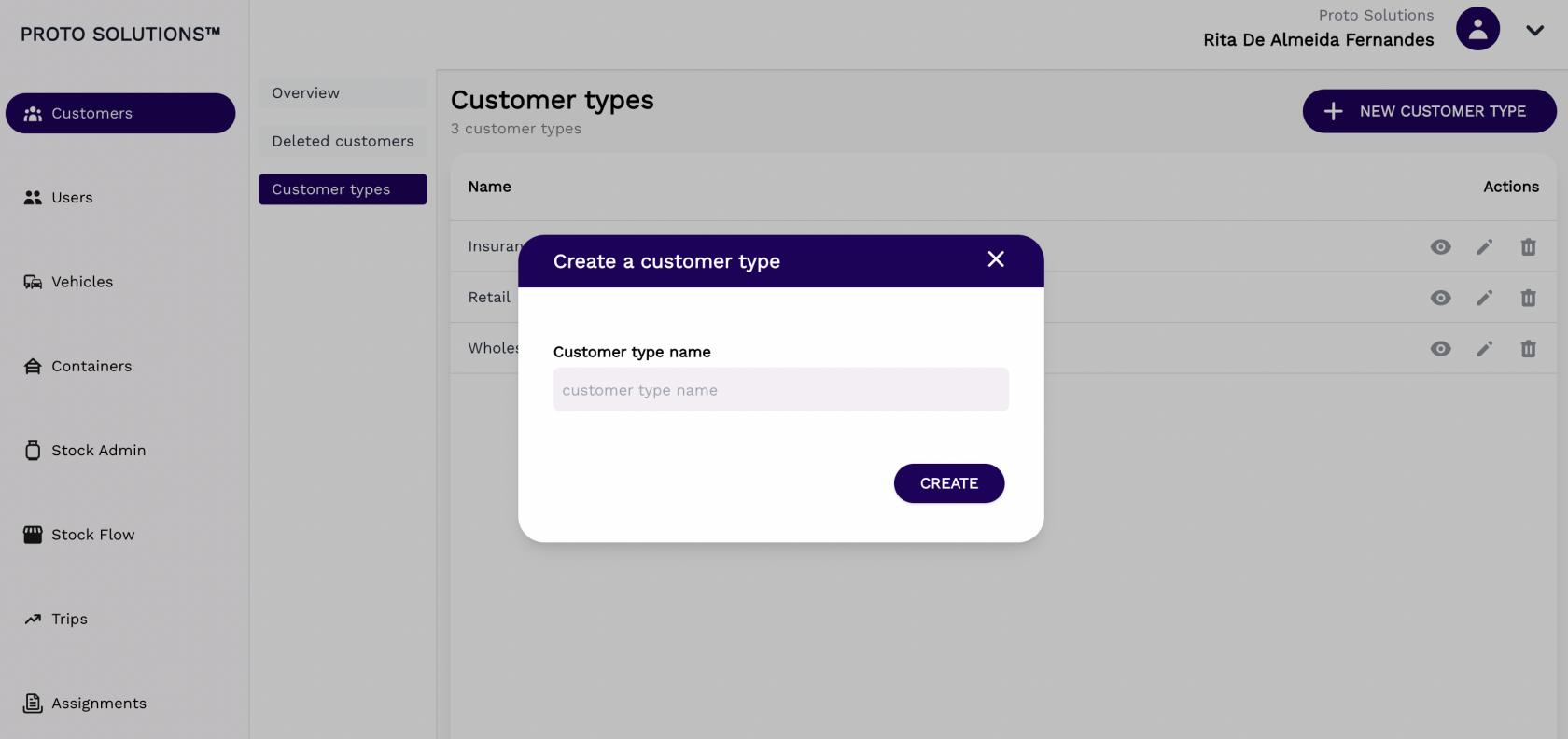
To create and register a new customer type in the system you can click on the **New Customer Type** button. A new page will open with the customer type required information in order to complete a successful registration. The only and mandatory field for the customer type creation is the customer type name.
After filling out all the mandatory fields you can click on the button **Create** in order to finish the customer type creation.
[](https://wiki.circl.services/uploads/images/gallery/2022-09/Bscimage.png)
# Deleted Customers
#### Deleted Customers
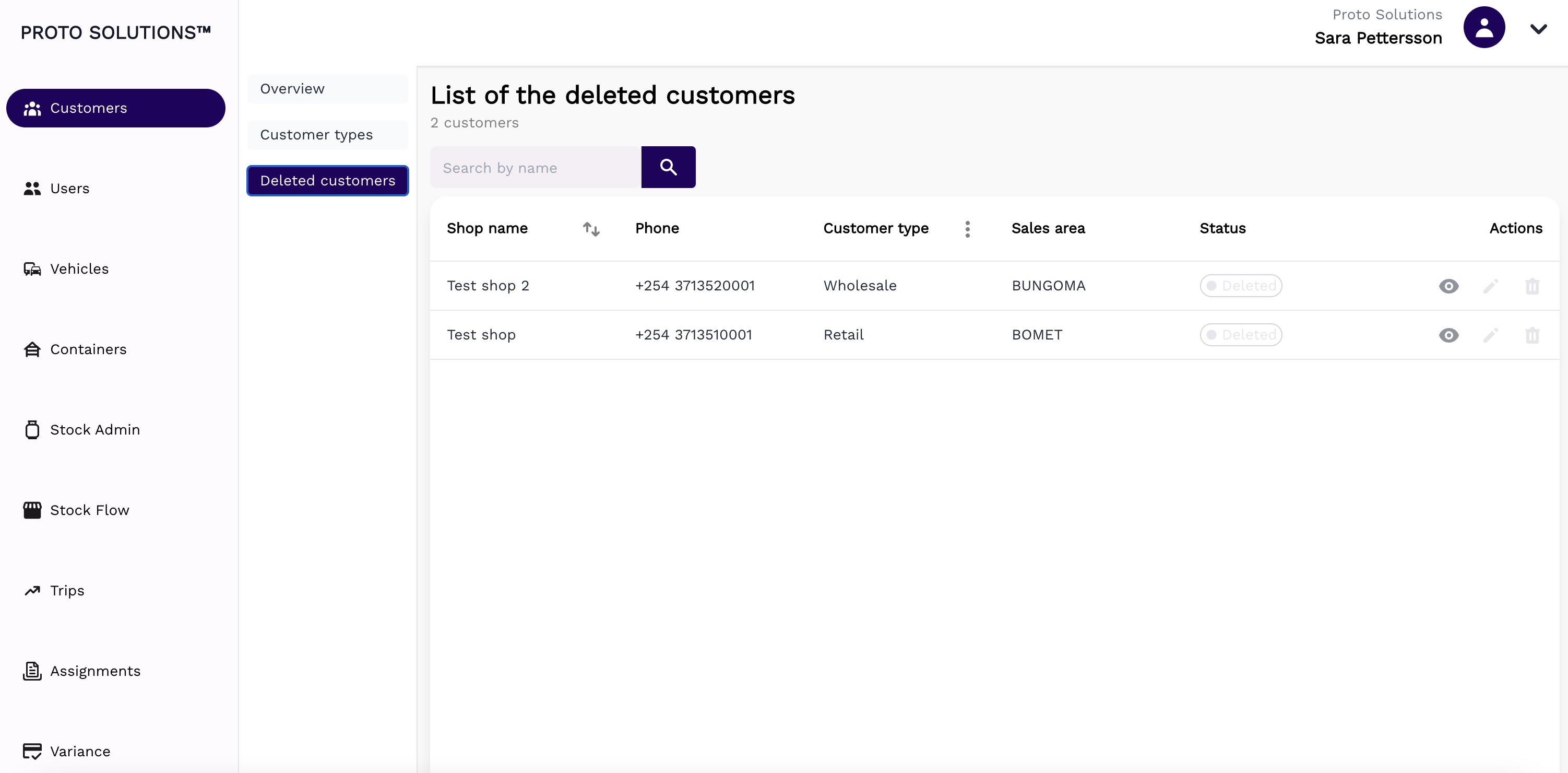
In order to see all deleted customers, you can click on the **Deleted customers** tab. To check out the details of a specific deleted customer you can click on the **action button** to display the customer information.
[](https://wiki.circl.services/uploads/images/gallery/2023-03/deleted-customer.png)